ProLiant Mobile
- 3.3
- Rating
- 500.00K
- Installs
- Free
- Price

 Analysis by App-foxy
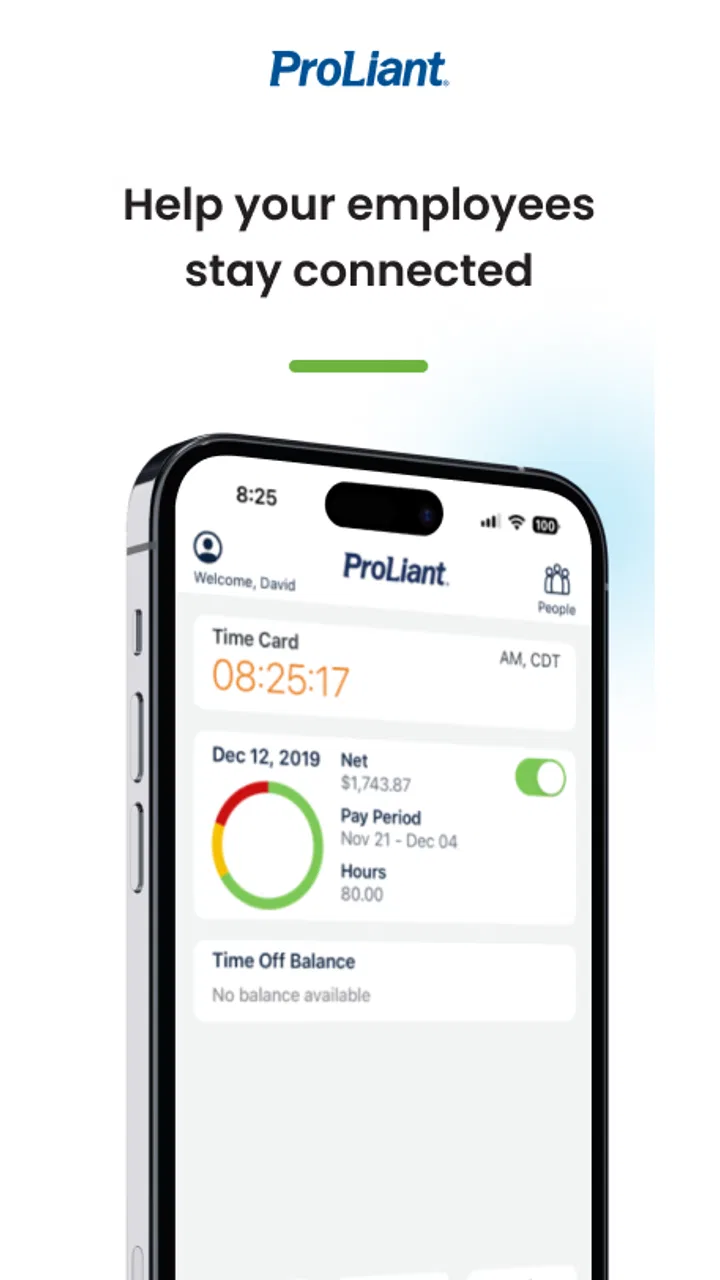
When I first opened ProLiant Mobile, I understood its purpose quickly: it is a business app built around employee self-service rather than a general workplace chat, project manager, or document suite. That distinction matters. If your employer uses Proliant, Inc for employee administration, this app can put routine work-related tasks closer to hand. If your workplace uses another system, installing it will not magically create an account or connect you to your company.
The app is free, rated for Everyone, and available as a mobile employee self-service tool. Its average rating sits at about 3.3 from more than 900 ratings, while the wider download figure has passed 500,000 installs. I read those numbers as a sign of a useful but not universally smooth experience: plenty of people rely on it, yet the app can feel dependent on how an employer has configured the surrounding Proliant service.
What to expect before you install it
My main advice is to treat ProLiant Mobile as a doorway into your employer’s system, not as a standalone productivity app. The most important question is not whether the app is free or whether your phone is compatible. It is whether your employer actually uses Proliant and has enabled mobile access for you. A first-time user who skips that check may mistake an account problem for an app problem.
You May Also Like

 Blood Strike: 2.5 Anniversary
Blood Strike’s Loadouts Turn Every Drop Into a Tactical Gamble
A close look at Blood Strike’s custom loadouts: how fast access to signature weapons reshapes its battle royale rhythm, rewards preparation, and narrows the gap between fights.

 Pandora - Music & Podcasts
Pandora’s Music Is Easy to Start, but Harder to Recover
Pandora’s strength is its low-effort path from a seed to a station. Its weak spot is how much confidence it asks you to place in connection, setup, and quiet recovery.

 8 Ball Pool
8 Ball Pool Is Built on Rivalries, Rematches, and Routine
A close look at the rivalries, rematches, shared routines, and unanswered safety questions that turn a quick pool match into a persistent mobile community.

 Samsung Music
Samsung Music’s Quiet Strength Is Playing What You Already Own
Its reach comes less from spectacle than from dependable access to a personal library. That simplicity is both the app’s strongest retention engine and its ceiling.

 AccuWeather: Weather Radar
AccuWeather Review: A Quick, Clear Forecast for Everyday Decisions
For everyday plans, the best forecast is the one you can understand quickly. AccuWeather makes rain timing, radar, and local conditions easy to act on, with a few trade-offs.

 Hill Climb Racing
Why Hill Climb Racing Still Turns Crashes Into One More Run
A tiny car, a bumpy hill and one more upgrade: Hill Climb Racing keeps resurfacing because its simple chaos makes every near-miss feel personal.
More From Our News Desk



The developer is Proliant, Inc, and the app belongs in the business category. It was released on May 27, 2015, and the current version is 3.6.9. That history suggests an established workplace tool rather than a new consumer experiment. I would still approach it with practical expectations: business software often reflects company settings, employee roles, and administrative rules more than personal preferences.
On a compatible device, the minimum operating system is Android 8.0. The age classification is Everyone, which is unsurprising for an employee service application. The free price also makes it easy to try, but “free” here should not be confused with open access. Your employer’s account, organization setup, and permissions determine what the app can actually show you.
Compared with a paper notice, an email to human resources, or a desktop-only employee portal, the mobile format is most useful when you need to check something while away from a computer. Compared with a full workplace suite, however, it is narrower. I would not choose it as a replacement for team messaging, shared files, video meetings, or project planning. Its value is concentrated in self-service access.
A realistic example is a worker who remembers during a commute that they need to review an employment-related item before the workday begins. Instead of waiting for a desktop session, they can open the app and try to handle the task from the phone. Whether that is convenient depends on the employer’s setup, but the mobile-first approach is clearly aimed at this kind of short, practical interaction.
Check the account path first
Before downloading, ask your manager or human resources contact which sign-in details you should use and whether mobile access is active. Do not assume that your normal email password, a payroll password, or a company network password is automatically the right one. Business platforms often separate these credentials, and repeated guesses can waste time without revealing what went wrong.
I also recommend having your employee identifier or work email available, along with any instructions your employer gave you. This is a small preparation step, but it makes the first session less frustrating. If your company gave you a specific enrollment route, follow that route rather than trying to improvise from the app’s opening screen.
Setting up ProLiant Mobile without unnecessary friction
After installation, I would begin by identifying the exact sign-in screen and reading its wording carefully. The goal is not to explore every option immediately. First, establish whether the app recognizes your organization and account. If it does, continue with the credentials or activation process supplied by your employer. If it does not, stop and verify the organization details instead of repeatedly entering personal information.
That approach is especially helpful for people who have more than one job, recently changed employers, or previously used Proliant through a browser. An old workplace connection can create confusion because remembering the platform is not the same as having access to the current employer’s environment. The app may be familiar while the account relationship is completely different.
I would also complete setup somewhere calm rather than in the middle of a rushed shift. Keep your phone’s keyboard language and autofill suggestions under control, because an automatically inserted personal address can be easy to overlook. A password manager can help if your employer permits one, but I would not save credentials on a shared or borrowed device.
The first useful test is simple: sign in, confirm that the account belongs to you, and look for a clear employee-facing area rather than trying to change several things at once. If the app opens but the expected information is missing, that does not automatically mean the installation failed. Employee systems commonly show different content according to role, location, employment status, or administrative configuration.
One practical trade-off is that mobile access can be faster than a desktop portal for quick checks, but it may be less comfortable for reading dense information or entering longer responses. I prefer using the phone for short actions and confirmations, then switching to a larger screen when the task involves careful review. That habit reduces the chance of approving or submitting something while scrolling too quickly.
The first successful action should be deliberately small
For a first session, I would choose one low-risk task that confirms the connection. Open the area you were specifically told to use, review the information presented, and make sure the account details appear consistent with your employment. The successful outcome is not “I tapped through every screen.” It is “I reached the correct employee information and know where to return next time.”
That first success gives you a reference point. If you later encounter a missing section or an unexpected message, you can distinguish a navigation mistake from a change in access. It also helps you learn the app’s rhythm: where the main employee area begins, how you return to it, and which screen confirms that an action has actually been completed.
I would avoid using the first session to experiment with a sensitive or time-critical request. A new user may not yet know whether a button saves immediately, opens a confirmation step, or simply displays information. Starting with observation is not timid; it is a sensible way to learn an employer-controlled system.
Once you understand the basic route, repeat the same path later without relying on memory from the setup process. This sounds minor, but it exposes whether the app is genuinely easy for you or whether the first successful result depended on unusual instructions. A self-service app earns its place on my phone when I can return to it without searching through old messages.
Common confusion comes from the boundary between app and employer
The most important limitation I noticed is the boundary between the mobile interface and the organization behind it. ProLiant Mobile can present employee services, but it cannot decide your company’s rules, repair incorrect employment records, or grant permissions that an administrator has not enabled. When information looks wrong, the right next step may be your employer’s support contact rather than reinstalling the app.
Another common misunderstanding is expecting every employee to see the same screens. A colleague may describe an option that is not visible on your phone, while both of you are using the same application. That difference can come from role-based access or company configuration. I would compare the task you were assigned, not just the buttons visible on someone else’s device.
Login trouble also deserves a measured response. First check the organization and account details you were given. Then verify that you are using the current app version and a supported operating system. If the credentials are correct but access still fails, contact the workplace administrator with a clear description of what you tried, rather than sending a vague “the app does not work” message.
There is a useful privacy habit here: keep personal screenshots and copied employee information to a minimum. If you need help, describe the screen and the error without sharing more sensitive information than necessary. The app is intended for business use, so I would handle anything visible inside it as workplace information even when I am using my own phone.
Notifications and timing can also cause confusion in any employee app. A mobile screen may make a task feel immediate, but the underlying process can still depend on an administrator or a workplace schedule. I would not assume that viewing or submitting something in the app means a separate employment decision has already been finalized. Look for a clear confirmation and keep any required workplace instructions in mind.
Where the app fits in everyday work
ProLiant Mobile makes the most sense for employees who regularly need self-service access and do not want to depend on a shared computer. It can be particularly practical for people who move between locations, work varied shifts, or handle administrative tasks outside a desk routine. The phone is already nearby, so a short check can be less disruptive than opening a full browser session.
It is less convincing for someone who rarely needs employee information or whose company still requires every important action through a separate process. In that situation, the app may add another place to remember rather than remove friction. I would also hesitate to recommend it as the only route for a task with a strict deadline until I had confirmed that the employer accepts mobile completion.
The comparison with a normal web portal is balanced. A browser can be better for wide pages, detailed reading, and copying information into another work document. The app is more appealing when convenience and quick access matter. The comparison with email is different again: email is useful for asking a person a question, while self-service software is better when the information or action is already structured for employees.
One non-obvious benefit of using the app consistently is that it can reduce the number of informal requests sent to coworkers for routine information. That only works if you learn the correct path and if the employer maintains the relevant content. The trade-off is that self-service can feel impersonal when a situation is unusual. For exceptions, a direct human contact remains better than searching through menus.
Another useful habit is to separate “checking” from “changing.” When I am new to an employee platform, I first use it to locate and read information. Only after I know where confirmations appear do I attempt an update or submission. This two-stage workflow is safer on a small screen and makes it easier to explain what happened if support is needed.
Who should use it, and who should skip it
I would recommend giving ProLiant Mobile a fair try if your employer specifically directs you to it, you use an Android device running at least Android 8.0, and your work often involves employee self-service. The free cost removes one barrier, and the large install base shows that it is not an obscure experiment. Its strongest case is convenience around employer-managed tasks.
I would skip it if your organization does not use Proliant, if you are looking for a general office app, or if your main needs are collaboration and communication. It is also not the right tool for someone who expects a personal finance manager, a universal payroll tracker, or a complete human resources adviser. Installing it without an employer connection is unlikely to provide meaningful value.
For people who prefer a desktop, I would keep the usual web route available. For people who need an explanation of a complex workplace issue, I would contact the appropriate human resources or administrative team. The app can be the convenient front door, but it is not a substitute for the people who control the records and policies behind that door.
My next-step routine after the first session
After the first successful action, I would make a short personal note of the correct login route and the section that mattered. I would not record sensitive information in that note; just the practical path and the name of the workplace contact for access problems. This turns a one-time setup into a repeatable routine without creating a security risk on the phone.
Then I would return when I have a real reason, rather than opening the app repeatedly just to explore. Use it for the employee task your organization intended, confirm that important actions show a completion state, and keep the employer’s normal support channel in mind. If the app becomes part of your routine, the best measure is not how many features you discover but how quickly you can complete the specific task you need.
My overall impression is cautiously positive. ProLiant Mobile is focused, free, and potentially useful for employees who need mobile access to their organization’s self-service system. Its limitations are just as important: the experience depends heavily on employer configuration, account setup, and the kind of task involved. The best first move is to confirm your employer connection, complete one small low-risk action, and treat the app as a convenient access point rather than the whole workplace system.
FAQs for ProLiant Mobile
01What is ProLiant Mobile, and what is it used for?
ProLiant Mobile is designed as a companion tool for managing and monitoring compatible HPE ProLiant server environments from a mobile device. It can help administrators review server information, check system health, follow alerts, and access important management details without being physically connected to the server console. Its usefulness depends on the supported HPE hardware, management software, and network configuration available in your organization.
02Is ProLiant Mobile compatible with Android and iOS devices?
Compatibility can vary according to the version of ProLiant Mobile, your device operating system, and the HPE server or management platform being used. Before downloading, check the application listing for the current Android or iOS requirements and confirm that your phone or tablet is supported. Some features may also require a compatible ProLiant server, iLO configuration, or additional HPE management services.
03Does ProLiant Mobile require an internet connection to work?
ProLiant Mobile generally needs network access to communicate with the relevant ProLiant server or HPE management service. In many business environments, this connection may be available only through a company network, VPN, or securely configured remote-access system. Basic information already loaded on the device may remain visible temporarily, but live monitoring, alerts, and server actions usually require an active and authorized connection.
04Is ProLiant Mobile safe for managing business servers?
Because ProLiant Mobile may provide access to sensitive infrastructure information, security depends heavily on how it is configured and used. Administrators should use strong credentials, keep the app and device updated, avoid unsecured public networks, and follow their organization’s access policies. The app should be treated as an administrative tool rather than a casual utility, especially when it can display server status or support remote management functions.
05What should I check before downloading ProLiant Mobile?
Before installing ProLiant Mobile, confirm that your organization actually uses compatible HPE ProLiant equipment and that the required management services are enabled. Review the app’s latest permissions, supported operating-system versions, connection requirements, and account setup process. It is also worth checking whether your administrator must configure remote access, certificates, VPN connectivity, or user roles before the app can provide useful information.
Pros
- Quick access to server health and hardware status on the go.
- Useful alerts help administrators respond to issues sooner.
- Supports remote monitoring without needing a full desktop interface.
- Clear layout makes key ProLiant information easy to find.
- Convenient for IT teams managing multiple servers remotely.
Cons
- Requires compatible HPE ProLiant systems and management configuration.
- Some features depend on network access and server availability.
- Remote actions may be limited compared with HPE’s full management tools.
- Not useful for users without HPE server administration responsibilities.
- Older devices or firmware may have compatibility limitations.

ProLiant Mobile
Gallery